How to Compress Images Without Losing Quality in 2026
Learn how to reduce image file sizes without noticeably reducing visual quality. This guide explains image compression, the best formats, resizing techniques, quality settings, and practical ways to optimize images for websites.
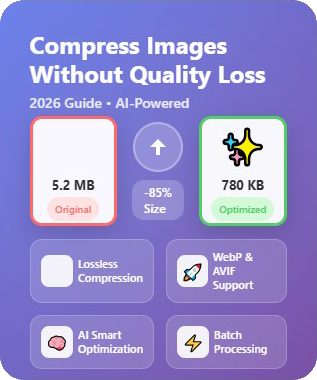
Quick Guide to Image Compression
| Method | File Size | Quality | Best For |
|---|---|---|---|
| Resize Image | Much Smaller | Excellent | Large images |
| WebP Compression | Small | Excellent | Websites |
| JPG Compression | Small | Good–Excellent | Photographs |
| PNG Optimization | Medium | Lossless | Graphics |
| Lossless Compression | Moderate Reduction | Original Quality | Important graphics |
| Lossy Compression | Large Reduction | Very Good | Photos & web images |
Table of Contents
1. What Is Image Compression?
Image compression is the process of reducing the amount of data required to store or deliver an image. A compressed image uses less storage space and requires less bandwidth when it is uploaded or downloaded.
The goal is not simply to make an image smaller. Good compression attempts to reduce unnecessary data while keeping the image visually clear and useful for its intended purpose.
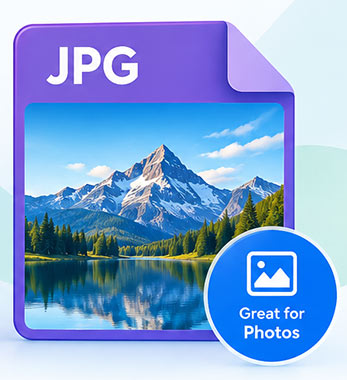
A properly optimized image can often look almost identical to the original while being significantly smaller in file size.
- Reduces image file size
- Uses less bandwidth
- Improves page loading performance
- Makes images easier to store and share
- Can improve the user experience on mobile devices
Compression does not always mean visible quality loss
Modern image formats and compression techniques can remove unnecessary image data while preserving a high level of visual quality. The amount of compression you should use depends on the image type and where it will be displayed.
Reduce image file size quickly while keeping your images looking sharp.
2. Why Should You Compress Images?
Large image files are one of the most common causes of unnecessary page weight. A website may look simple to a visitor while downloading several megabytes of images in the background.
Compressing images can reduce the amount of data that browsers need to download and can make pages more efficient, especially on mobile networks.
Smaller image files can reduce the amount of data required to load a page.
Optimized images are especially useful for visitors using slower or metered connections.
Smaller files consume less bandwidth when delivered to visitors.
Compression can reduce the storage requirements of large image collections.
Does image compression improve SEO?
Compression itself is not a direct ranking guarantee. However, optimized images can reduce page weight and support better loading performance and user experience, which are important considerations for modern websites.
3. Lossy vs Lossless Compression
There are two major approaches to image compression: lossy and lossless. Understanding the difference helps you choose the right optimization method.
Lossy Compression
Lossy compression removes some image information to achieve a substantially smaller file.
- Much smaller files
- Excellent for photographs
- Useful for websites
- Some visual information is discarded
Lossless Compression
Lossless compression reduces file size without permanently removing image information.
- Preserves original image data
- Useful for graphics
- Good for screenshots
- Usually produces larger files than lossy compression
4. Resize Images Before Compressing
One of the simplest ways to reduce image file size is to make sure the image is not significantly larger than the size at which it will actually be displayed.
For example, uploading a 5000-pixel-wide photograph for a website area that displays it at 1000 pixels wide creates unnecessary image data.
Why resizing matters
- Reduces the number of pixels in the image
- Reduces file size before further compression
- Reduces browser download requirements
- Can improve page loading performance
- Prevents unnecessarily large images from being delivered
5. Choose the Right Image Format
Compression works best when you first select an appropriate image format. JPG, PNG, WebP and newer formats are designed for different types of content.
| Format | Compression | Best For | Transparency |
|---|---|---|---|
| WebP | Lossy / Lossless | Modern websites | Yes |
| JPG | Lossy | Photographs | No |
| PNG | Lossless | Graphics & screenshots | Yes |
| SVG | Vector | Logos & icons | Yes |
Use JPG for photographs
JPG remains useful for photographs because it can achieve relatively small files while maintaining good visual quality.
Use PNG for specific graphics
PNG is useful when lossless quality or transparency is important, such as for screenshots, logos and interface graphics.
Use WebP for many modern web images
WebP supports both lossy and lossless compression and is suitable for many photographs, graphics and transparent web images.
6. Why WebP Is Useful for Websites
WebP was designed to provide efficient image compression for the web. It supports both lossy and lossless compression and can also handle transparency and animation.

For many websites, WebP can provide a useful balance between visual quality and file size.
- Useful for photographs
- Supports transparency
- Supports lossy compression
- Supports lossless compression
- Good fit for modern web delivery
7. Choose the Right Compression Quality
Compression quality determines the balance between file size and visual quality. Higher compression generally produces smaller files, but excessive compression can introduce visible artifacts.
Do not automatically choose maximum compression
The smallest possible file is not always the best result. If compression creates obvious blocking, blur, ringing or other artifacts, the image may look noticeably worse to visitors.
Check the compressed image at its intended display size.
Reduce quality progressively instead of immediately using extreme compression.
Aim for a visually acceptable image with a practical file size.
The same image can produce different results in JPG, PNG and WebP.
8. How to Compress PNG Images
PNG is a lossless format and is particularly useful for graphics, screenshots, logos and images requiring transparency. Because PNG files can become large, optimization can be especially helpful.
Best ways to reduce PNG file size
- Remove unnecessary metadata when appropriate
- Use the correct color depth for the image
- Resize oversized PNG images
- Use lossless PNG optimization
- Consider WebP when PNG-specific features are not required
9. How to Compress JPG Images
JPG is particularly effective for photographs because it is designed around lossy compression. You can often reduce the file size significantly while keeping the image visually attractive.
Ways to optimize JPG files
- Resize the image to the required dimensions
- Use an appropriate JPEG quality level
- Remove unnecessary metadata when appropriate
- Avoid repeatedly saving already compressed files
- Compare JPG with WebP for web delivery
When compressing photographs, always compare the compressed image with the original. A small reduction in quality may produce a large reduction in file size, while excessive compression can make details look soft.
10. Image Compression for Websites
Website image optimization is more than simply compressing every file. A good workflow combines resizing, format selection, compression and responsive delivery.
Avoid serving images that are much larger than their displayed size.
Select JPG, PNG, WebP or another suitable format based on the image.
Apply an appropriate compression level to reduce unnecessary data.
Consider responsive image sizes for smaller screens.
Add meaningful alternative text where the image communicates useful information.
Defer below-the-fold images when appropriate to reduce initial loading.
Recommended Image Sizes for Common Website Uses
There is no single image dimension that works for every website. The correct size depends on the layout, screen size and display density.
| Image Type | Typical Approach | Format | Priority |
|---|---|---|---|
| Blog Featured Image | Resize to layout width | WebP / JPG | High |
| Product Photo | Responsive sizes | WebP / JPG | High |
| Logo | Exact display dimensions | PNG / SVG / WebP | Medium |
| Screenshot | Resize if oversized | PNG / WebP | Medium |
| Thumbnail | Create dedicated small version | WebP / JPG | High |
11. Best Practices for Compressing Images
Do not upload unnecessarily huge images when a smaller version is sufficient.
Use a format that matches the content and required features.
Reduce file size without creating distracting visual artifacts.
Store an original high-quality copy before applying destructive compression.
Deliver appropriately sized images for different screen widths.
Always inspect the final image rather than judging optimization only by file size.
Upload an image and reduce its file size online.
12. Frequently Asked Questions
Can I compress an image without losing quality?
Yes. Lossless compression can reduce file size without permanently removing image information. Resizing and format optimization can also reduce file size while keeping visual quality high.
What is the best image format for website images?
There is no single best format for every image. WebP is a strong choice for many modern website images, while JPG remains useful for photographs and PNG is useful for graphics and transparency.
Does compressing JPG reduce quality?
JPG uses lossy compression, so aggressive compression can reduce image quality. A suitable quality setting can provide a useful balance between visual quality and file size.
Should I convert PNG images to WebP?
It can make sense when smaller web files are more important than retaining a PNG-specific workflow. However, PNG may still be the better choice for certain graphics and workflows.
Is it better to resize or compress an image?
Ideally, use both when appropriate. Resizing removes unnecessary pixels, while compression reduces the data needed to represent the remaining image.
How small should a website image be?
There is no universal target file size. The goal is to use the smallest practical file that still provides the required visual quality and dimensions for the page.
Does image compression improve website speed?
Smaller image files can reduce the amount of data a browser needs to download, which can help improve loading performance.
13. Final Verdict
The best way to compress images without noticeably reducing quality is to combine the right dimensions, image format and compression level.
Start by resizing an image to the size you actually need. Then choose a suitable format such as WebP, JPG or PNG and apply enough compression to reduce file size without introducing distracting artifacts.
For many modern websites, an efficient WebP image can be an excellent choice for photographs and graphics. JPG remains useful for photographs, while PNG continues to be valuable for lossless graphics and transparency.
The important thing is not to compress every image using the same settings. Optimize each image according to its content, dimensions and purpose.